当 Kanzi Studio 加载工程时,它会在预览 (Preview) 中显示您的工程,就像它作为应用程序在目标设备上运行一样。您可以从 菜单或使用快捷键控制预览 (Preview)。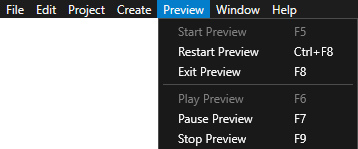
| 快捷键 | 描述 |
|---|---|
| F5 | 在暂停模式下启动预览 (Preview)。 |
| F6 | 开始播放预览 (Preview)。 |
| F7 | 暂停预览 (Preview)。 |
| F8 | 退出预览 (Preview)。 |
| F9 | 停止预览 (Preview)。 |
| Ctrl F5 | 在播放模式下启动预览 (Preview)。 这是您打开 Kanzi Studio 工程时的默认预览 (Preview) 设置。要更改设置,请转至 > 用户首选项 (User Preferences) > 高级 (Advanced) > 预览 (Preview)。 |
| Ctrl F8 | 重新启动预览 (Preview)。 |
Setting the OpenGL ES wrapper for the 预览 (Preview)
You can set how Kanzi handles OpenGL ES content on the Windows platform, which does not support OpenGL ES. OpenGL ES differs from regular OpenGL in features such as depth mipmaps, color formats, texture compression, and shader language.
To set the OpenGL ES wrapper for the 预览 (Preview):
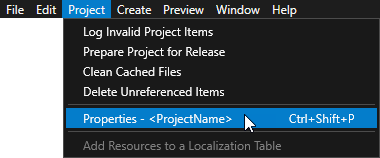
- In the main menu select > .
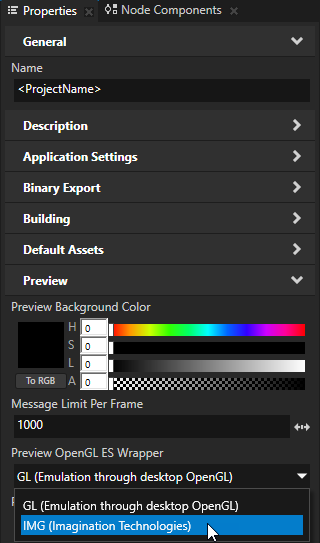
- In the 属性 (Properties) set the 预览 OpenGL ES 包装 (Preview OpenGL ES Wrapper) property:
- GL (通过桌面 OpenGL GL 仿真)(Emulation through desktop OpenGL) calls OpenGL directly. This is the default setting.
- IMG (Imagination Technologies) uses a wrapper provided by Imagination Technologies to emulate OpenGL ES behavior on a system with desktop OpenGL.
You can set this as the default value for all your Kanzi Studio projects in the > 用户首选项 (User Preferences) > 高级 (Advanced), by setting 默认预览 OpenGL ES 包装 (Default Preview OpenGL ES Wrapper) to IMG (Imagination Technologies).注The IMG (Imagination Technologies) wrapper is not stable enough to be used for development. Use it only to test how the graphics in your application render when using OpenGL ES. For content development use the OpenGL.
在 预览 (Preview) 中只显示页面 (Page) 节点和预设件的内容
默认情况下,预览 (Preview) 显示您的整个 Kanzi 工程,就像它作为应用程序在目标设备上运行一样。但是,您可以隔离应用程序的某些部分,并在预览 (Preview) 中作为单独的项进行查看。这就意味着您无需实例化预设件即可处理页面 (Page) 节点或预设件的内容。
- 要在 预览 (Preview) 中只显示预设件的内容,请在 预设件 (Prefabs) 中双击该预设件。
Kanzi Studio 在新的 预览 (Preview) 选项卡中打开预设件,并在预览 (Preview) 中显示该预设件的内容。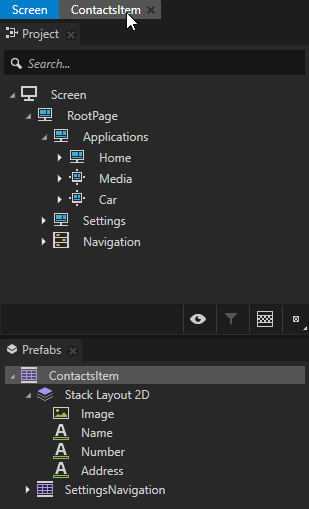
- 若只显示页面 (Page) 节点的内容,在 工程 (Project) 或页面 (Pages) 中双击该页面。
Kanzi Studio 会在新的选项卡中打开页面 (Page) 节点,并在预览 (Preview) 中显示该 页面 (Page) 节点的内容。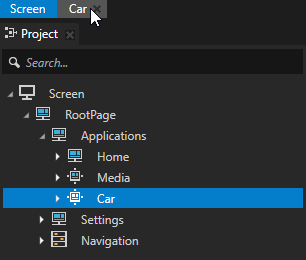
当您在预览 (Preview) 中隔离 页面 (Page) 节点或预设件时,您可以通过位于 Kanzi Studio 底部的时间线控件,在 预览 (Preview) 中控制应用程序的这一部分。要显示时间线,请在 Kanzi Studio 主菜单中选择 > > 。
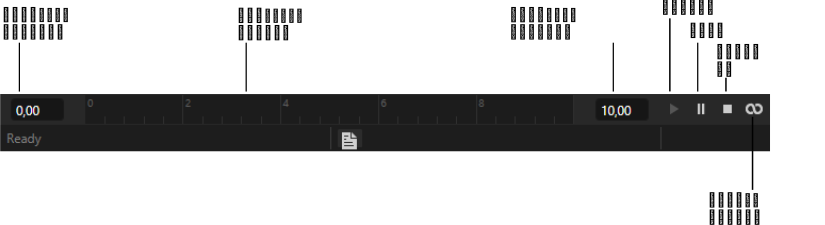
预览 (Preview) 会显示您的应用程序中处于播放或暂停模式的页面 (Page) 节点或预设件。
- 在播放模式下,页面 (Page) 节点或预设件就如同独立的应用程序一样工作:用户界面组件具有交互性,并且播放动画。
- 在暂停模式下,动画停止,但用户界面组件仍然是活动的。如果组件执行动画,则在您进入播放模式之前不播放这些动画。
当预览 (Preview) 处于暂停模式时,您可以在时间线栏中设置应用程序时间。
您可以在预览 (Preview) 中使用这些回放模式。
| 回放模式 | 描述 |
|---|---|

|
在连续播放模式下,预览 (Preview) 在时间线栏中设置的开始时间开始播放,但未设置结束时间。 |

|
在播放范围模式下,预览 (Preview) 在时间线栏中设置的开始到结束时间之间循环播放。 |

|
在播放范围和停止模式下,预览 (Preview) 在时间线栏中设置的开始到结束时间之间播放一次。 |
